
software_setup
School software setup
You should login with the id given to you at the start of the school. Don’t change the password!
Always save your work on your J: drive. Information stored anywhere else (e.g. C\user\….) is likely to be deleted at the end of each day or when you logout. Never save files in your main TOPAS directory (J:\TOPAS7).
We suggest you save your work in folders like: J:\school_work\tutorial_0
Any software updates needed during the school will be in the school shared software folder.
topas-editor/TOPAS
You will need to (a) copy TOPAS to your computer, (b) set up the TOPAS license, then (c) configure VS Code to work with TOPAS.
1. Copy the whole TOPAS7 folder from the from the T:\CHEM folder to your J: drive. This may take a few minutes if many people are copying. The folder is also available in the school shared software folder.
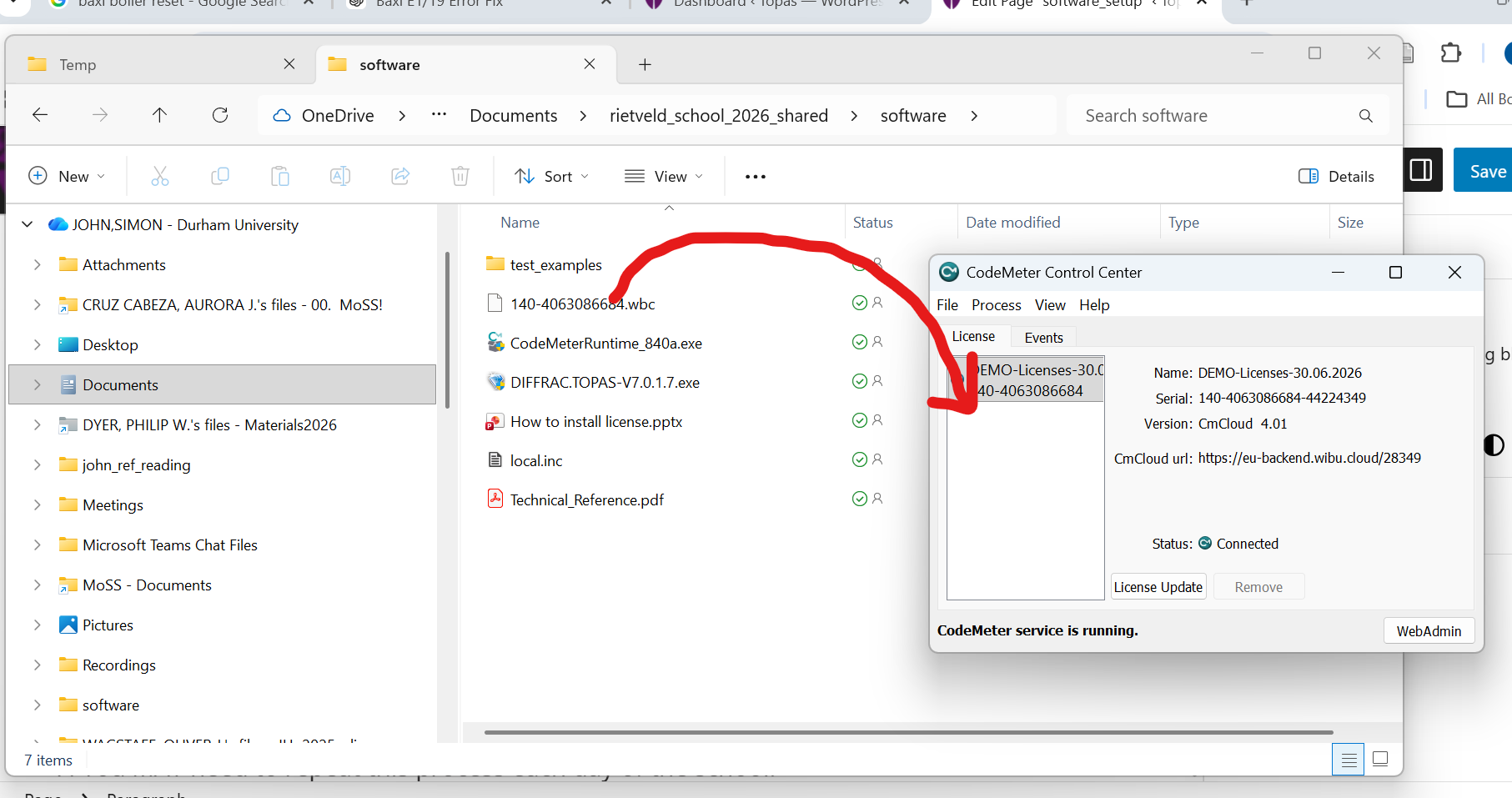
2. Open the codemeter software (type “codemeter….” in the windows search bar). Drag the file called “140-4063086684.wbc” from your J:\TOPAS7 folder onto its licence window as in the sketch below. You should get a message saying the licence is activated.
3. Launch VS Code by typing “VS” in the windows search bar.
4. Click on the extensions icon (the four white squares in the image below). Type “topas” in the text box alongside. Click the blue “Install” button by the Te topas-editor extension. If prompted select “Trust Publisher and Install”. Click “Update” when prompted to update to the latest topas-editor menus.
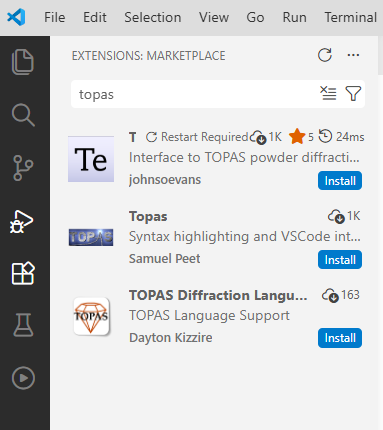
5. When (if) prompted click “OK” and navigate to select the TOPAS directory (J:\TOPAS7).
6. There will be a bar at the top of VS Code asking you to select a colour scheme. I like “TOPAS Light”.
7. Click on the “triangle in circle” icon in the bottom left of the image above to see the TOPAS menus. You can then launch TOPAS with the red “Run Bruker TOPAS” command at the top of the menus. You could try one of the simple tutorials at this stage to check your installation.
6. You MAY need to repeat the topas-editor installation process each day of the school.
7. If you find TOPAS won’t run later in the school you may need to respecify the TOPAS directory. You can do this via the “VS Code TOPAS setup” menu then “Select TOPAS directory”. More information on the topas-editor setup is here.
GSAS-II
GSAS-II should be installed by default. There will be an icon on your desktop.
Excel
Excel should work on all classroom computers. You may need to install the “solver” took kit. Go to “File/Options/Add-ions”. By “Excel Add-ins” at the bottom click “Go…”. Select “Solver Add-in” on the next window.