
vscode_setup
topas-editor in VS Code
The topas-editor VS Code extension (TE) is the new recommended way to interact with TOPAS academic. It replaces jEdit.
topas-editor has a full set of TOPAS menus, short cut keys to interact with TOPAS, numerous power-editing commands, the ability to interact with other analysis packages, AI capabilities and full TOPAS syntax colouring. It works with TOPAS Academic, the Bruker version of TOPAS and tc.exe. The only jEdit feature not readily available is the ability to cursor-select beyond the end of a line.
Installation
topas-editor has been used on >1500 different PC’s, but you should still treat it as a test version. Email John when you find problems.
There is a video showing how to install and use topas-editor on my YouTube channel, along with other videos showing some of its features.
1. You can install topas-editor by going to the VS Code extensions market place (normally the four squares on the left panel of your VS Code window and typing “topas-editor” in the search box that appears then install.
2. A dialog box should appear asking you to set a colour theme. I suggest “Topas light”. You should next be prompted to set up the the TOPAS menus. Confirm you are happy to install the TOPAS menus, then navigate and select the TOPAS directory. If this process doesn’t happen automatically type ctrl-tu.
3. If you select a Bruker TOPAS directory you will be asked if you would like to install the test_examples folder that is distributed with TOPAS Academic. Having this present helps several of the advanced features.
4. You will be prompted whether to install TOPilot AI skills. This installs a set of skills in a Users/your_user_name/.claude/skills directory. I recommend installing them even if you don’t plan to use TOPilot.
5. You may find that VS Code puts a second theme selector box on the screen at the end of the setup. If it does, just select the same theme as in step 2. If this messes up type ctrl-tl and reselect the theme.
6. You should be able to see TOPAS menus by clicking on the “triangle in circle icon” on the left.
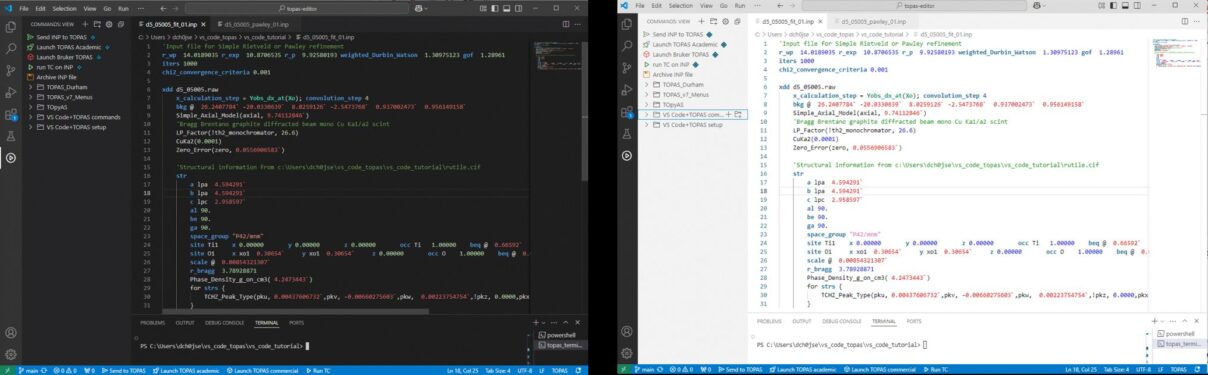
7. Your VS Code screen should look something like the image below (tbc). The left and right hand views are (slightly old) “TOPAS Dark” and “TOPAS Light” themes.
8. Consider turning on the “auto update” feature so you get bug fixes and menu updates.
9. If you have your own custom menus they will get overwritten when topas-editor updates. Store them in a separate .json file and use the “Add my menus” command to reinstall them.
10. The topas-editor installation tries to not mess up any other VS code settings, if it does, look in the settings_old.json file.
Using topas-editor
Information on using the topas-editor extension is in its readme file. You can view this by clicking on the “Te” icon in the extensions panel of VS Code. You can also find videos on my YouTube channel.
A step-by-step tutorial on Rietveld and Pawley refinements is here.